Amelia Faison Final Project Unit 6

Storyboard: The goal of this project was to create a program in which a magic 8 Ball would ask the user to ask a question and would respond to that yes or no question with a answer randomly chosen from a list of possible answers made by the programmer.

Logic: I used the paint and pen functions to draw a sprite that resembled an 8 ball. Then, I made the 8 ball say things like “Hi, ask me a question”. The input bar then popped up. I used a variable called “random” to create a command that corresponded to all numbers from 1 to 5. I then used if blocks to say that if the number chosen was a specific number, the 8 ball would have a specific comment in response to the question asked by the user.

Steps:

1. Create a Sprite

2. Ask the question to the user

3. Create a variable called “Random #”

4. Create a operator that chooses a number from 1 to 5

5. Make 5 if else blocks that connect responses to one of these 5 numbers

Problems: I did not have many issues.

Links:

https://snap.berkeley.edu/snapsource/snap.html#present:Username=ameliafaison&ProjectName=Automated%20Fortune%20Teller

M7L1A2: Amelia Faison and Luke Eubank

Storyboard: In this lab, we will use a block called “position of number in unsorted list” in order to report the earliest location of a number in an unsorted list. In the second lab, the blocks we make will generate all 2 digit, 3 digit 100 – 999 or 4 digit 1000 – 9999, etc. We will then decide if the algorithm takes a reasonable or unreasonable time to function. If an algorithm is unreasonable, we will add 1 to the input size.

Logic: In this Snap! lab, we created blocks that returned the position of a number in a list sorted from lowest to highest or zero when the number was not in the list. We did this by creating several blocks and variables that each worked together in order to search through the list by each item until the input was equal to an item in the list.

Steps:

1.) We created a list of random numbers to include in our program.

2.) We built a position of number in sorted list block that returns the position of a number in a list sorted from lowest to highest or zero if the number is not in the list.

3.) We used the set block and the change block in order to alter the counter variable to change and correctly reflect the position of the item in the list.

4.) We implicated several true or false operators in order to detect whether the variable matched any item in the list

5.) We added two say blocks that used join operators to say either it was found in the list or was not found and then the variable of the counter which reflects the position in the list.

6.) For the second lab, we downloaded the lists and the blocks that Snap offered us

7.) In the ‘list from through’ block, we included a report block that resulted in the report of all numbers in the list after the number inserted

8.) In the ‘all 2 digits numbers’ we struggled as the list was equivalent to the list acquired above.

9.) For the ‘make your own block’, we decided to make a block that would report only odd numbers within the list

10.) We did this by using mathematical operators to decide whether a number would be odd or not

Problems:

Once we had formed our function, the sprite would report that the number was not found in the list even if it was in the list. Only our last value worked and made the computer report the position of the number in the list. Also, we experienced issues when the variables in our original block were not allowing number inputs. In the second lab, we struggled with the program which reported all numbers with a certain number of digits because the last number reported was one digit larger than the number inputted. When we were creating our own block to sort through the list, we had the problem of the reporter not reporting any list of numbers.

Link: https://snap.berkeley.edu/snapsource/snap.html#present:Username=luke_eubank_apcsp&ProjectName=Search%20Algorithms


https://snap.berkeley.edu/snapsource/snap.html#present:Username=luke_eubank_apcsp&ProjectName=M7L3-listfrom


U2L3 – Amelia Faison and James Fryling

Storyboard:

In this lab, our goal will be to use predicates paired with the “keep” block in order to keep items in a list that have specific characteristics. Then, we will run our initialized lists and use our new predicates together in order to answer questions such as: How many 12-letter words are in words list? How many 15-letter words are in words list? How many 17-letter words are in words list? and how many items in the numbers list are.

Logic:

  1. How many 12-letter words are in words list?
    1. 46 word are 12 letters long
  2. How many 15-letter words are in words list?
    1. 3 words are 15 letters long
  3. How many 17-letter words are in words list?
    1. There are no 17 letters long in the words list
  4. How many items in the numbers list are:
    • Even?
      • 2
    • Between 25 and 75?
    • Even numbers that are greater than zero?
      • 1

Problems: We could not figure out how to find the even numbers in the list. We had a lot of trouble completing this lab due to the lack of detailed instructions and our low level of coding experience.

Future Reference: In future labs, we hope to complete the program with a profound understanding of the intended functions and the job of each individual block. We will do this by reading the instructions thoroughly and insuring our understanding of the lab before starting.

Link: https://snap.berkeley.edu/snapsource/snap.html#present:Username=ameliafaison&ProjectName=U2L3-KeepingData

Final Project – Music: Amelia Faison

Storyboard: The goal of this lab is to create a program that can play the song “row, row, row your boat”. The “play note” block will be used to execute this as well as higher order functions and abstract data types. Constructors and selectors will be utilized as well.

Logic: I created several blocks including “note, pitch and length”, “pitch from note”, “length from note”, and some variables as well including length, pitch and note. Lists were created with the inputs of the note pitch and length block that was connected to the list of notes that was previously given. Blocks were specified to track and record the beats per minute or second and this gave the coder more control over the intended sounds. Using the map block  with the ADT blocks created a reporter block that transposed or shifted a list of notes.

Steps:

  1. First, I created a play note block
  2. I placed the list within this block, after the item random option
  3. I specified this by including the information of “1 beat”
  4. I then moved onto a block called “for each”
  5. I created a “note” variable and included the list in this as well
  6. Within this block, I included a command that said “play note for 1 beat”
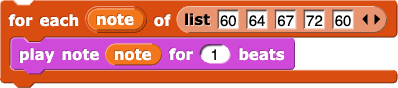
  7. It looked like what is pictured below.
  8. for each (note) of (list (60) (64) (67) (72) (60)) (play note (note) for (1) beats)
  9. I then created a block very similar to the one pictured above, however this block included the “map” specification
  10. I included the addition operators and typed 5 for the second space
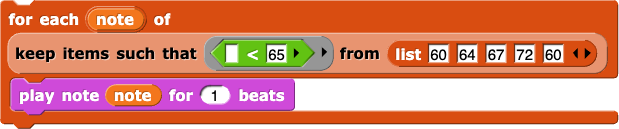
  11. Lastly, I created a third for each block and included “keep items such that” with an operator and the list included
  12. I placed the play not block within this and specified it by included only one beat
  13. It ended up looking like what is pictured below.
  14. for each (note) of (keep items such that (() < 65) from (list (60) (64) (67) (72) (60))) (play note (note) for (1) beats)
  15. Finally, i made a reporter that said “row row row your boat”
  16. I included a reporter for this
  17. Within this reporter, I included a list with 10 blocks of “note, pitch and length”
  18. I included specific numerical values within each space
  19. These notes corresponded with the lists provided.
  20. lastly, I tested the program and the code and finished by placing the “row row row your boat” reporter into the play song block I created.

Problems: Within this lab, I encountered several issues that prevented the code from successfully completing the intended function. Some of these obstacles included an oversimplified block that did not complete its intention. I fixed this by editing the block and adding extra blocks within the edit function in order to specify the intention.

https://snap.berkeley.edu/snapsource/snap.html#present:Username=ameliafaison&ProjectName=Module%204-%20Final%20project

M4L4A2 Amelia Faison Graphing Data

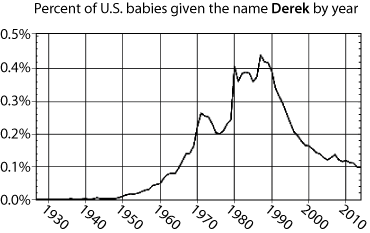
Storyboard: The goal of this lab is to use a provided list of data points and to graph these points on a grid. When the sprite is dragged, it should state its x and y coordinates. The pen should also be used to plot the points and form a graph or a scatter plot that resembles this photo-

percentage of births named Derek by year

Logic: As a partnership, we utilized the data points and the list to attempt the creation of a scatter plot like the one above. We made several command blocks and reporter blocks in order to create a stage that included x and y axes. These include a block like “x coordinate of point and y coordinate of point”. We included several codes within codes in order to simplify our program and to add depth that would successfully execute or intended function of the program.

Steps:

  1. We created two command blocks: x Graph at Stage x with the Mouse x inside it and a y Graph at Stage y with the Mouse y inside of it.
  2. We put these two block within a round block and specified that it be rounded to 2 decimal places.
  3. We used a joined block that put both of the blocks mentioned above within one block.
  4. We established a set graph scale block that included an x minimum, a x maximum, a y minimum and a y maximum.
  5. We created a block that stated that the x Stage would go to 1927
  6. We created a block that stated that the y Stage would go to 0.5.
  7. We included a block within the datapoints block that said that each item of the datapoints list would go to a specific x and y coordinate.
  8. Then, we included pen up and pen down blocks in order to create the data points.
  9. Within this, we created more blocks that identified where the pen would be put down and what size it was supposed to be.

Problem Solving:

We did not have enough time to finish this lab and therefore we did not complete the graph with the data points pictured. We also came across many issues when it came to the edit option and placing blocks within blocks in order to execute various functions.

Link:

https://snap.berkeley.edu/snapsource/snap.html#present:Username=ameliafaison&ProjectName=U3L4-GraphingApp

M4L2A2 Tic Tac Toe William Meland Amelia Faison and Gigi Harthan

Storyboard: In this lab we will develop a tic-tac-toe board that can be played and used. The “active” part of the board means that in the end of the lab we will be able to play tic tac toe. To create this lab we will use a series of blocks that we will make and use the “clone” feature to duplicate the costumes such as boxes that are the sprites. We will also use a block called “delete the clone” to delete the duplicated boxes. This feature will leave the original block in place and delete all others.  

Logic: In this lab we will be using one central idea of computer science, called parallelism or distributed computing. The project is operating on a computer and using an illusion provided by Snap! which allows the sprites to run simultaneously. To expand on this, the computer and this program specifically allows us to use commands and variables such as “MakeBoard” to clone a parent, in this case a block, and place it in a desired layout.

In order to change the costumes based on the player, we included if and else blocks with specific details about X and Y players. If it is X’s turn, then the block switches to the X costume. Additionally, if it is Y turn, the block design switches to O.

We then needed to determine what counts as a win by storing each possible winning triple in a list. We did this by thinking of all possible solutions for three in a row in order to win the game.


Steps:

  1. First, we created a Sprite with three different costumes, one with an “X”. one with an “O”, and one as an empty box.

We used this set of blocks to create nine boxes to set up the tic tac toe board. We then created a block similar to the one below.

This did not affect the original Sprite.

2.) Then, we deleted the when I am clicked script.

3.) Next, we edited the makeboard to set up nine clones in three rows of three.

4.) The clones will start out without an X or an O, and we did this by creating a “set” block that stated that the list began as “empty”.

5.) The if, else block is then used to create the players of X and Y paired with the costume switch blocks.

6.) We used a repeat block around our “makeBoard”.

7.) Within our “Make Board”, we included several “move x to …” in order to create the grid.

8.) Underneath the make Board block, we added a “set” block with “X’s turn?” to true.

9.) We created a new variable called “Sprite Local Variable” in order to number each block.

10.) We numbered the grid 1 through 9.

11.) We then created a global variable to keep track of the costume of each individual square and its costume (blank, an X, or an O).

12.) We then made a local variable in order to associate each block to a number so that the winning board has the list of the winning triples.

13.) We then created a won? Block which established who was the winner based off of the winning triples

14.) Within this won? Block, we created three levels of steps including reporter blocks call “winning triple” and “status of triples”

15.) We then created two if else blocks and put both of the won blocks within these (one for O won and one for X won).

16.) In the else section, we created the possibility that one block is left empty and included a say block “Tie game!”.


Problems:

We had issues with deleting our parent block after all of the clones were made, after our project was deleted. After a few rounds of trial and error, we added a hide block and were able to erase the parent block and create a complete 3×3 grid.

We struggled to assemble the grid correctly, because at first we had a random alignment of squares.

Also, once we had the grid, we struggled to assign the various costumes (the X’s and O’s) to the squares in order to have them appear.

Our blocks were numbered wrong and so when the first block was clicked, the board stated that the number 2 position was filled and the number 1 position was empty.


FINAL PROJECT: https://snap.berkeley.edu/snapsource/snap.html#present:Username=gigiharthan_apcsp&ProjectName=U2L4-Tic-Tac-Toe
Final Project: Haley and Amelia Clock

Story Board:

Open the Snap given to us, then we will import the special tools needed for this. We need to remember these blocks:

First we will edit the second hand since it will have to not only move the most but also make noise. We will give the command when green had is clicked, go to x=0 and y=0, so that it will be in the center of the clock. Next we will make a forever loop so that it will continue to move. Then we will add, point to (so that it will point outwards to a certain degree), then we will get a multiplication operator. For the seconds we will multiply the current second by 6 to get the number of degrees ( because there are 360 degrees in a circle and 60 seconds in a minute, 360/60=6).Next we will add a play sound block from sound and make it play the sound Tick by looking in the sound part of the snap menu.  Next we will add a wait of 1 second in to make it only move on the second instead of constantly moving, ticking and updating. For the minute hand we will do a similar process as before ( I will only address the changes made). So that it moves on the minute we will use point towards current minute*6 ( since there are also 60 minutes in an hour and 60*6=360). We will add a wait 60 seconds block in so that it will move on the minute. We also removed the sound since it only needs to play in seconds.Finally for the hour, we we will do a similar process to the minute process. The only differences are that hour hand will point to will be multiplied by 30 ( since there are 12 hours on a clock so 12*30=360) and the wait will be 3600 seconds so that it only moves on the hour.

Logic:

To figure out the degrees so that the sprites would point to their correct direction:

Seconds: Since there are 60 seconds in a minute and 360 degrees on a circle (clock), we must must multiply the seconds by 6 to get the proper degree (360/60=6).
Minutes: Since there are 60 minute in a hour and 360 degrees in a circle, we must multiply the current minute by 6 to make it point to the correct degree (360/60=6).

Hours: Since there are 12 hours on a clock and 360 degrees in a circle, we must multiply the current hour by 30 to make it point toward the correct degree (360/12=30).

Steps:

  1. With the three Sprites, create three different storyboards with similar blocks
  2. Use the “When green flag is clicked” block as the hat for each script
  3. To move all Sprites to the center, use the “move to x=0 and y=0” block
  4. Keep the x and y values as 0.
  5. Underneath that, use the “go to front” block that can be found in the Looks section
  6. For each script, use the forever bock to encase several blocks listed in the next few steps
  7. In the forever block, include the “Point in direction block”
  8. Place the multiplication operator in the white space
  9. For the hour hand, put 30 in the first space and an addition operator in the second
  10. Put current hour in the first space and a division operator in the second
  11. Put current minute in the numerator space and 60 in the denominator space
  12. For the minute hand, put 6 in the first space and the current minute block in the second
  13. For the second block, put 6 in the first space and the current second in the second
  14. For the minute hand, put the “wait” block after the point block and type in 60.
  15. The hour hand does not need a “wait” block.
  16. In the script for the second hand sprite, put the “Play Sounds” block underneath
  17. Select the sound “Tick”
  18. Underneath this, place the “wait” block and type in 1.
  19. Click the green flag to watch the clock run!

Problems and Solutions:

We could not find the Tick-Tock so we substituted the snapping sound.

We noticed looking at the clock that throughout the hour it moves gradually closer to the next hour instead of making a jump from 9 to 10 and 10:00. At first we were stumped on how to fix this, then we realized that we need to use more operators to change the position throughout the hour of the hour hand. First we knew we needed to incorperate minutes somehow so we knew we needed to convert between minutes and hours so we used the divide operator to convert the current minute into hour ( 60 minutes=1 hour) so current minute/60. This will create the fraction of the hour. Then we knew we needed to add this to the hour so we added the addition opperator, so it became current hour+ current minute/60. Next we knew it still needed to point in the correct direction and since it was still in hours we put it all inside the multiplication opperator such that 30(current hour+ current minute/60) thus is will point towards the correct direction. Finally we realized that we didn’t actually need the wait of 3600 seconds since it wasn’t actually making a noise so we removed that allowing it to move throughout the hour and deleting unnessisary code.

Future reference:

Through this lab, we learned several skills that we can apply to future labs. For example, we now know that operator blocks can be used to specify the exact direction we want the Sprite to go or point. This is especially helpful when mathematical processes are required to successfully complete the task. Also, by inputting identical coordinates for each Sprite, they will all go to the same location on the background.

Link:

https://snap.berkeley.edu/snapsource/snap.html#present:Username=ameliafaison&ProjectName=BuildYourOwnClock_Student

M2L3A5&6 Amelia Faison and Haley Foard

Storyboard:

We will use our existing pinwheel block to make asterisk and polygon blocks, usiing abstraction.

The goal is to create other, simpler special-purpose procedures that each do a particular job.

Use for loops to repeat and count the repetitions so you can use that counter to draw shapes with repeated patterns.

Logic

To make the asterisk do a particular job, we used our previous project to help us.

We modified the pinwheel function to make a simple polygon.

To make it change the number of sides we will add a item of list block then put all the options of number of sides in a list so that it would choose random.

To draw shapes, we used the the repeat block   block. Similarly, the for block lets us simplify long scripts.

Steps

  1. Use your pinwheel block to create a more specialized asterisk block.
  2. Make a new clock called asterisk.
  3. Two variables are used, one for length of branch and one for number of branches
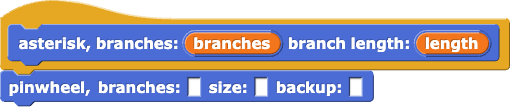
  4. asterisk (branches) (length):  pinwheel ( ) ( ) ( )
  5. Fill in “pick random 3 to 30” for branches
  6. Fill in “pick random -10 to -90 for backup
  7. Fill in “pick random 10 to 90 for size
  8.  Write another version of polygon.
  9. Use primitive blocks (moveturn).
  10. We used  for to name a variable.
  11.  Import the for tool.
  12. for (i) = (1) to (10) [say (i) for (2) secs]
  13. Modify above so that the say block is repeated going up by even numbers until 30.
  14. squiral script
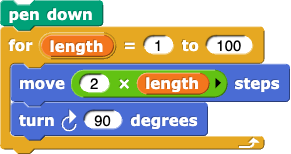
  15. switch the order of the 100 and the 1 in the for block in the spiral script.
  16. Change the inputs to turn and move to get a smooth spiral.

Problems:

We continued to have problems with our program making shapes that weren’t necessarily asterisks. We fixed this by insuring that our branch input was equal to the number in the repeat block.

Link:

https://snap.berkeley.edu/snapsource/snap.html#present:Username=haley_foard_apcsp&ProjectName=U1L4-Pinwheel

https://snap.berkeley.edu/snapsource/snap.html#present:Username=haley_foard_apcsp&ProjectName=M2L3-Squiral

M2L2A3 Gossip and Greet; Amelia Faison and Haley Foard

Story Board:

We will add on to our sprite conversation game by creating a new “gossip response” block. We also had the sprites greet one another using the if-else function.

Logic:

We made a command block in order to add conversational phrases such as, o what, sooo about that…, who cares, I heard, and whatever. Then we added function to make one sprite ask the name of the other sprite, and the second sprite will state their name, then followed by a “nice to meet you”. We added “When I am clicked,” so that when the player clicks the sprite, it will ask for a name.

Steps:

  1. We began by creating a command block titled “Gossip Response”
  2. We shaped it into the oval reporter block
  3.  We used the the list block and the item block.
  4. In the list block, we added phrases such as, so what, sooo about that…, who cares, I heard, and whatever,…
  5. We changed the “1” in the item to “random”.
  6. We then dragged the gossip response block into the gossip2 block
  7. We deleted the oh, but, and added our gossip response block
  8. We tested the program by clicking on the first sprite several times
  9. We then included the ask button to allow Sprite #1 to ask the name of Sprite #2
  10. Then we had the option of Hi, nice to meet you again, and Hi, nice to meet you.

Solved By:

When the random phrases were added, there was not a space in between the phrase and the rest of the comment. We fixed this by adding a space after our phrases in the command block.

We also had the issue of the block saying “error” and we fixed this by switching the command block to be located under the script of the second sprite.


Link

Click Alonzo Game (William Meland, Amelia Faison, Harrison Stone)

In this activity the objective is for the Alonzo game to run when the script Alonzo is clicked. Last week, we created two scripts. One with the green flag hat and the other with the sprite clicked hat.  In the green flag is clicked script, we added a command for the sprite to welcome the player. When the green flag is clicked, Alonzo moves to (190, -130) on the background and says the message, “Welcome to ‘Click On Alonzo!’ Keep clicking me if you can!” That message disappears when the first script is activated by the player clicking on Alonzo. We did this by adding a command that made the sprite say nothing once clicked. Once the sprite is clicked, it moves to a random position on the background and switches direction. The more the player clicks on Alonzo, the more transparent it becomes. We activated this feature by adding the “Ghost mode”.